Showing posts with label textview. Show all posts

Monday, 29 October 2012

How to use custom font and style android

How to use custom font and style android
  • How to set custom Font face in android.
  • How to change font of the TextView
  • Set Font run time in android.
  • How to change Font face run time in android.  
  • Setting Font face of TextView,EditText in android.
  • Download free android tutorial for how to set Font face.
  • Android setting font face run time example code.
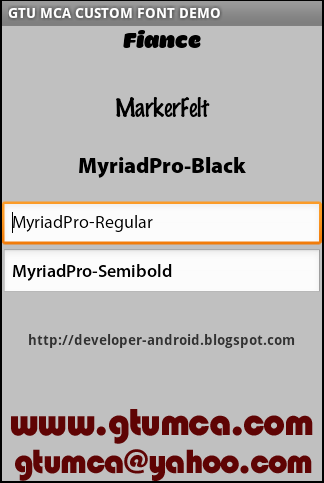


           This is a simple tutorial for android beginner which will help you to understand how to use custom fonts in your android app.

Android allows user to set Fonts in easier way.

But there is one limitation that you can't set font face using xml, you must need to set font face using code(run time).

You can set Font face of TextView as well as EditText run time.

Steps to set custom fonts in android.
  • Create one TextView  using xml.
    <TextView
    android:id="@+id/tv_example"
    android:text="gtu mca"
    android:layout_width="wrap_content"
    android:layout_height="wrap_content" >


  • Give reference in java code
     TextView tvExample = (TextVi1ew)findViewById(R.id.
    tv_example);
     
  •  Put Font face file in your assets folder
     
    find from below sample code Fiance.otf
     
  • Create and Initialize object of TypeFace from assets folder 
    Typeface font = Typeface.createFromAsset(getAssets(),Fiance.otf");
     
  • Set Font face to TextView
    tvExample
    .setTypeface(font);
     
  • Build and run your project.
     
  • Here you goes...
GTU MCA Custom Font Demo Download For Free - Free Android Tutorial
 

Related Links  
  1. Get number of lines lines of TextView in Android.
  2. How to create simple TextView in android.
  3. Latest IT news updates 

Monday, 20 August 2012

Get number of lines of TextView in android

How to get total number of lines of TextView ?


TextView textView = (TextView)findViewById(R.id.textView1);
int totalLines = textView.getLineCount();


ViewTreeObserver vto = this.textView.getViewTreeObserver();
        vto.addOnGlobalLayoutListener(new OnGlobalLayoutListener() {

            @Override
            public void onGlobalLayout() {
                ViewTreeObserver obs =
textView.getViewTreeObserver();
                obs.removeGlobalOnLayoutListener(this);
                System.out.println(": " +
textView.getLineCount());
               
            }
        });


Related links :

textview in android how get number of lines of textview in android ViewTreeObserver in android get total number of lines of textview get visible lines of textview in android

Thursday, 7 June 2012

TextView in android

TextView in android.


  • TextView in android are works as label. 
  • It enables user to display text on the screen.
  • Generally text display in textview are static but user can set text dynamically.
  • Two ways to create text view in android
    • Using xml file in layout

               <TextView
              android:id="@+id/hello"
              android:layout_width="fill_parent"
              android:layout_height="wrap_content"
              android:text="@string/hello" />
       
    • Using java code in activity class
             
               TextView tvDynamic = new TextView(this);
              tvDynamic.setText("---> Dynamically created TextView");
       
  • Types of TextView in android
    • Large TextView
      • android:textAppearance="?android:attr/textAppearanceLarge"
         
    • Medium TextView
      • android:textAppearance="?android:attr/textAppearanceMedium"
         
    • Small TextView
      • android:textAppearance="?android:attr/textAppearanceSmall"
         
    • Checked TextView
             
            <CheckedTextView

            android:id="@+id/checkedTextView1"
            android:layout_width="wrap_content"
            android:layout_height="wrap_content"
            android:text="CheckedTextView"/>
           

Twitter Delicious Facebook Digg Stumbleupon Favorites More

 
Design by Free WordPress Themes | Bloggerized by Lasantha - Premium Blogger Themes | Bluehost Review